Automatically format your availability for every time zone.
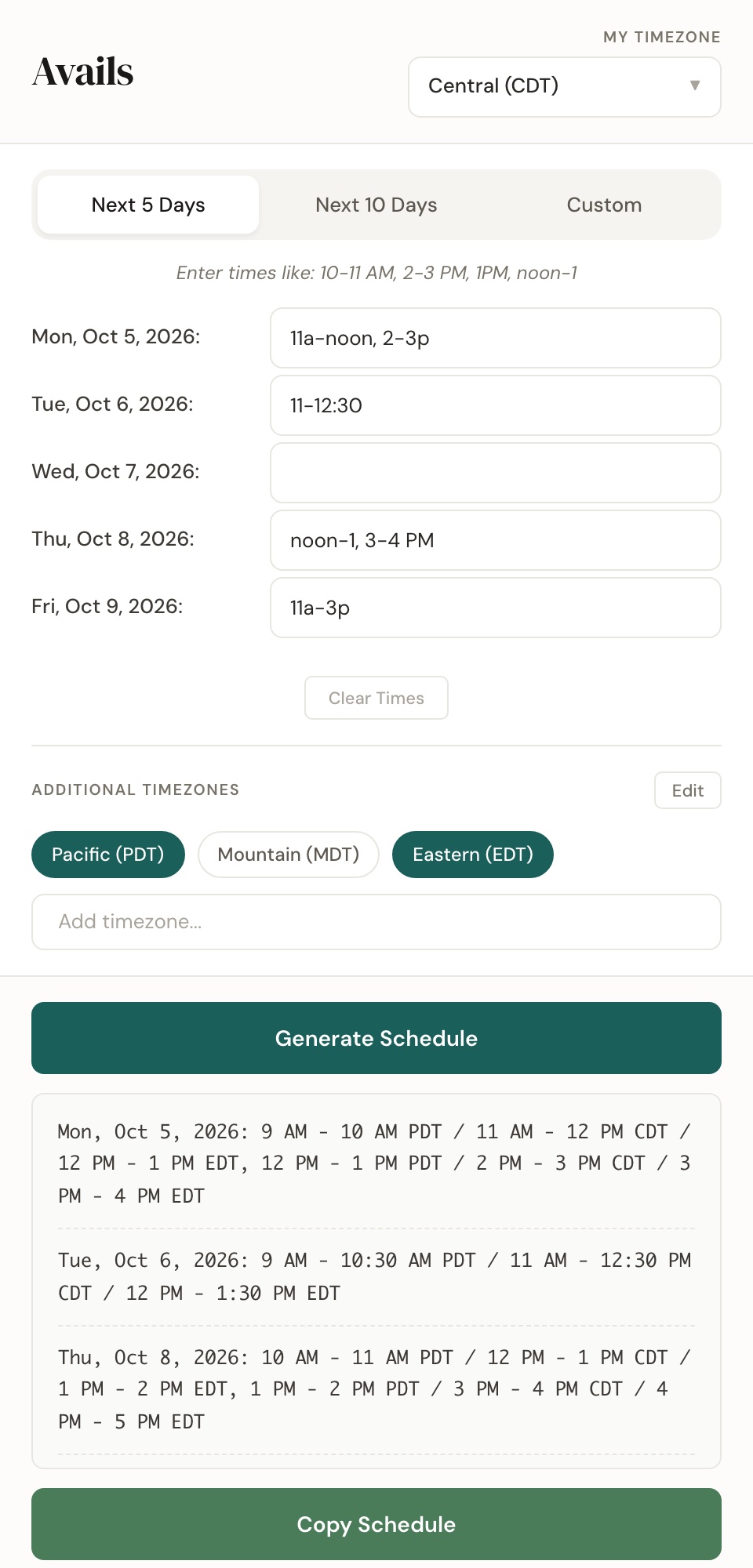
Type your open times the way you jot them down. Avails turns them into a clean list, converted for everyone on the thread, ready to paste into an email.
How it works
-
Open the side panel and choose your days
Click the Avails icon. It opens on the next 5 days. Switch to the next 10, or pick any custom date range. The panel stays open next to your calendar while you work.
-
Type your times however you think about them
Write 10-11, 2-3p, noon-1, or 9AM-2PM. With or without AM/PM, upper or lowercase, a single hour or a range, several separated by commas. Avails reads them all and makes an intelligent guess at what you mean: 9-2 is probably 9 AM to 2 PM, not 9 PM to 2 AM. If it guesses wrong, add AM or PM.
-
Pick the time zones
Tap the zones of the people on the thread, or search for any city. Your own zone is always included.
-
Generate and copy
Avails writes one line per day with every zone side by side. Copy it and paste it into your email.
Careful details
- Shorthand that parses
- 10a-2p, 9-10:30a, noon-1, 2p. Bare hours get a business-hours read, so 11-2 means 11 AM to 2 PM.
- Any time zone
- Search by city or abbreviation and star up to three favorites. Your own zone is always included.
- Daylight saving, handled
- Each date converts with the rules for that date, so a schedule that spans a clock change stays right.
- Business-hours check
- Avails flags a slot that lands outside business hours for someone else before you send it.
- Entries that stick
- Times save per date as you type. Close the panel, come back, and they’re still there.
- Nothing to connect
- No account and no calendar access. Avails asks for two permissions: local storage and the side panel.